
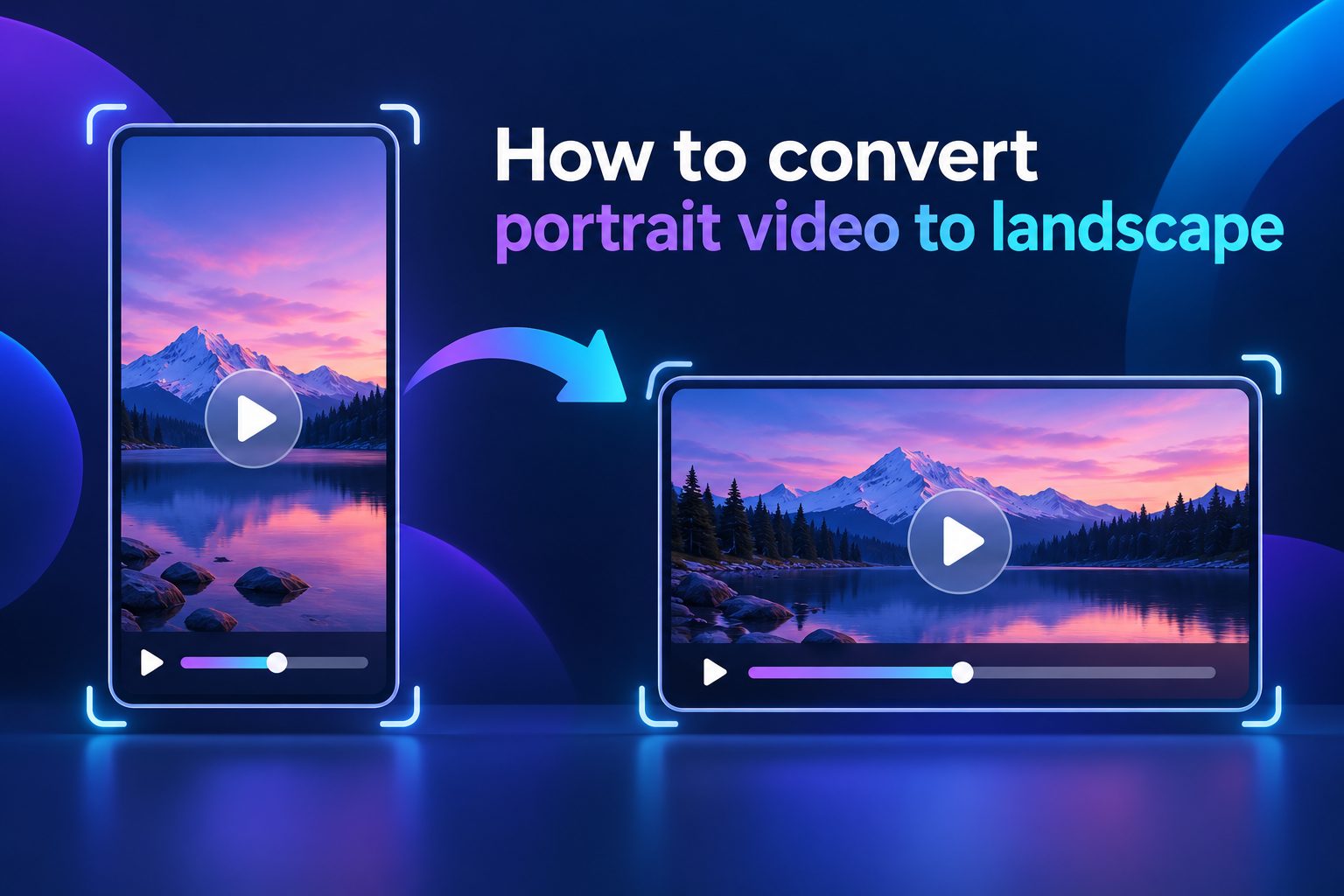
Learning how to convert portrait video to landscape is useful when a vertical clip needs to fit a widescreen player, presentation, television, website, or standard video platform. The goal is not simply to rotate the file; it is to create a horizontal frame that still looks intentional, clear, and comfortable to watch.
Portrait footage is designed around a tall 9:16 frame, while landscape video usually uses a wide 16:9 frame. Converting between them can leave empty space on both sides, crop important details, or make the subject appear too small if the edit is not planned carefully.
This guide explains the main conversion methods, how to choose the right one, and how to avoid common quality problems. You will also learn how framing, background design, captions, resolution, and export settings affect the final landscape result.
Portrait-to-landscape conversion changes the canvas rather than the original story alone. A vertical source can remain centered inside a wider frame, be enlarged and cropped, or be rebuilt with extra visual elements around it. Each approach changes what viewers notice first.
The best choice depends on the video’s purpose. A talking-head clip often works well with a soft background or supporting text at the sides, while action footage may need a carefully cropped landscape version to keep movement feeling natural and immediate.
A landscape frame gives creators more horizontal room for titles, product images, screen recordings, subtitles, and secondary footage. That space can make a repurposed vertical video feel designed for its new destination instead of looking like a narrow clip placed in the middle of a large screen.
It is important to review the original footage before editing. Check where the person, product, or action appears in the vertical frame, because a landscape crop can easily cut off hands, faces, signs, or other details that are essential to the message.
Good conversions protect the main subject and keep visual attention focused. The final result should look balanced at normal viewing size, not just correct inside an editing preview. A quick test on the device or platform where it will be watched is often worthwhile.
How Can You Convert Portrait Video To Landscape?
Choose The Target Aspect Ratio
Start by deciding where the finished video will appear. A standard landscape format is 16:9, which suits widescreen players, presentations, and many video platforms. Some projects may require a wider cinematic frame or a custom display size, so set the destination format before making creative decisions.
Create A Landscape Canvas
Open the clip in an editor and create a new horizontal project or canvas. Place the portrait video in the center first, without stretching it. This gives you a clear view of the unused side areas and lets you compare several layout options before committing to a crop.
Keep The Full Portrait Frame
The safest method is to retain the complete vertical video and fill the sides with a background. This preserves every important detail in the original recording. It is especially useful for interviews, tutorials, demonstrations, and clips where a face, product, or on-screen text already fills much of the image.
Crop When The Subject Has Room
Cropping can create a more native-looking landscape video, but it works only when the main action sits near the center and there is enough extra space above and below it. Enlarge the portrait clip gradually, then check the entire timeline for moments when the subject moves toward an edge.
Use A Blurred Background
A blurred duplicate of the source video is a popular side-fill option because it matches the clip’s colors and motion. Put a larger copy behind the original, crop it to the landscape canvas, and blur it strongly enough that it supports the foreground without competing for attention.
Add A Designed Side Background
A solid color, subtle gradient, branded pattern, or related still graphic can also fill the extra width. Keep this background simple and high contrast only when it supports readable text. The portrait footage should remain the visual priority unless the side area is intentionally used for supporting information.
Reframe And Export Carefully
Before exporting, watch the video from beginning to end and check that the subject stays visible during motion. Export at a landscape resolution that matches the target platform, such as a standard high-definition widescreen size, while preserving a sensible frame rate and adequate quality setting.
Why Convert Portrait Video To Landscape
1. Landscape video fits widescreen displays more naturally. It can look more at home on desktop players, televisions, conference screens, and embedded website video areas where a vertical frame may otherwise appear small or surrounded by unused space.
2. A wider canvas creates room for useful supporting material. Editors can add captions, speaker names, product details, callouts, diagrams, or screen captures without covering the main portrait footage and without making the source video feel crowded.
3. Repurposing existing clips can save production time. Instead of recording a new horizontal version immediately, creators can adapt a strong portrait recording for another channel, campaign, lesson, or internal presentation while keeping the original message consistent.
4. A well-planned landscape edit can improve viewer comfort in some settings. Viewers using laptops, televisions, projectors, or horizontal video players often benefit from a composition that uses more of the available screen width and presents the subject at a practical size.
5. Conversion also encourages smarter content planning. Once you see how vertical footage performs in a wide frame, you can record future material with more space around the subject, capture alternate angles, and make later reuse easier across several formats.
Key Factors For Landscape Video Conversion
- Source Resolution: Use the highest-quality original file available. Enlarging a low-resolution portrait clip to fill a wide frame can expose softness, compression artifacts, and noise, especially on larger displays.
- Subject Placement: Check where the person or object sits in every important shot. Centered footage usually offers more conversion choices, while edge-to-edge movement often requires a full-frame layout with side backgrounds.
- Motion And Camera Movement: Fast movement makes cropping riskier. Review jumps, pans, gestures, and camera shifts so the landscape composition does not cut off the action or create distracting repositioning.
- Text And Captions: Keep text inside safe, readable areas. Existing vertical captions may need to be moved, enlarged, or redesigned so they remain visible and do not collide with new side content.
- Background Style: Choose a background that matches the video’s tone. Blurred footage works well for simple social clips, while clean colors or subtle graphic panels can better suit training, product, or business content.
- Platform Requirements: Confirm the final player’s preferred dimensions, duration limits, and compression behavior. A conversion should be tailored to its destination rather than exported once with settings that may not suit every use.
Common Portrait To Landscape Conversion Mistakes
Stretching The Original Video
Stretching a portrait clip horizontally may fill the canvas, but it distorts faces, products, and objects. People can look unnaturally wide, and the problem becomes obvious during motion. Preserve the original proportions and use cropping or side-fill design instead.
Cropping Without Checking The Timeline
A crop that looks fine on the first frame can fail later when the speaker turns, raises a hand, or walks across the shot. Review the complete clip, including transitions and pauses, because the subject may leave the safe landscape area at any point.
Making The Background Too Busy
Side backgrounds should support the source video, not demand attention. Strong patterns, sharp duplicate footage, bright animation, or unrelated images can pull viewers away from the main subject. Use restrained colors, low-detail textures, or a sufficiently blurred duplicate clip.
Ignoring Existing On-Screen Text
Portrait videos often contain captions, stickers, interface elements, or embedded titles placed near the top and bottom. When you crop or reframe, those elements may be cut off or become difficult to read. Inspect the source before choosing an aggressive zoom level.
Using One Layout For Every Clip
A single conversion style does not suit every video. A close-up interview, a cooking demonstration, a phone screen recording, and a sports clip need different framing choices. Select the layout based on what viewers must see, not simply on what is fastest to apply.
Exporting At The Wrong Settings
A landscape canvas can still produce a poor result if the export is too compressed, incorrectly sized, or saved at an unsuitable frame rate. Check the output dimensions and play the exported file before publishing, especially if text, fine detail, or fast motion matters.
Forgetting The Viewing Context
A landscape conversion made for a large presentation screen may not be ideal for a small mobile player, and a social-media style layout may look weak in a professional training video. Consider where, how, and by whom the finished content will be viewed.
To convert portrait video to landscape successfully, begin with the destination and protect the important content in the original frame. A full vertical clip with thoughtful side space is often safer than forcing an aggressive crop.
Choose between a blurred background, a clean designed layout, or a crop based on the subject, motion, and need for supporting text. Review the full timeline and check the exported video at the size viewers will actually use.
A careful conversion turns existing portrait footage into a useful widescreen asset without losing clarity or purpose. The strongest result feels intentional, balanced, and easy to watch from the first frame to the last.
FAQs About Portrait To Landscape Video
Can I Convert A Portrait Video To Landscape Without Cropping?
Yes. Keep the full vertical video centered in a landscape canvas and fill the left and right sides with a blurred version of the clip, a solid background, or simple supporting graphics. This approach preserves the original image and avoids cutting off important details.
What Is The Best Landscape Aspect Ratio?
For most general video uses, 16:9 is the most practical landscape aspect ratio because it fits common widescreen players and displays. However, the right choice depends on the destination. Always check the platform, presentation format, or screen requirements before starting the edit.
Will Converting A Video Reduce Its Quality?
The conversion itself does not have to reduce quality, but enlarging a portrait clip or exporting it repeatedly can make it look softer. Start with the original file, avoid unnecessary re-exports, and choose an output resolution and quality setting appropriate for the final viewing size.
Should I Use A Blurred Background?
A blurred background is a reliable choice when the portrait footage contains important content near its edges. It fills the landscape frame while matching the clip’s colors and movement. Blur it enough that viewers focus on the sharp foreground video rather than the background.
Can I Add Text Beside A Portrait Video?
Yes. The empty side areas in a landscape layout can hold a title, key points, captions, a speaker name, or product information. Keep the text concise, readable, and visually separate from the main footage so the composition does not become crowded.
When Should I Avoid Cropping To Landscape?
Avoid cropping when the subject moves widely, when a demonstration uses the full vertical frame, or when important captions and objects sit near the top or bottom. In these cases, preserving the complete portrait image inside a landscape layout is usually the more reliable option.