
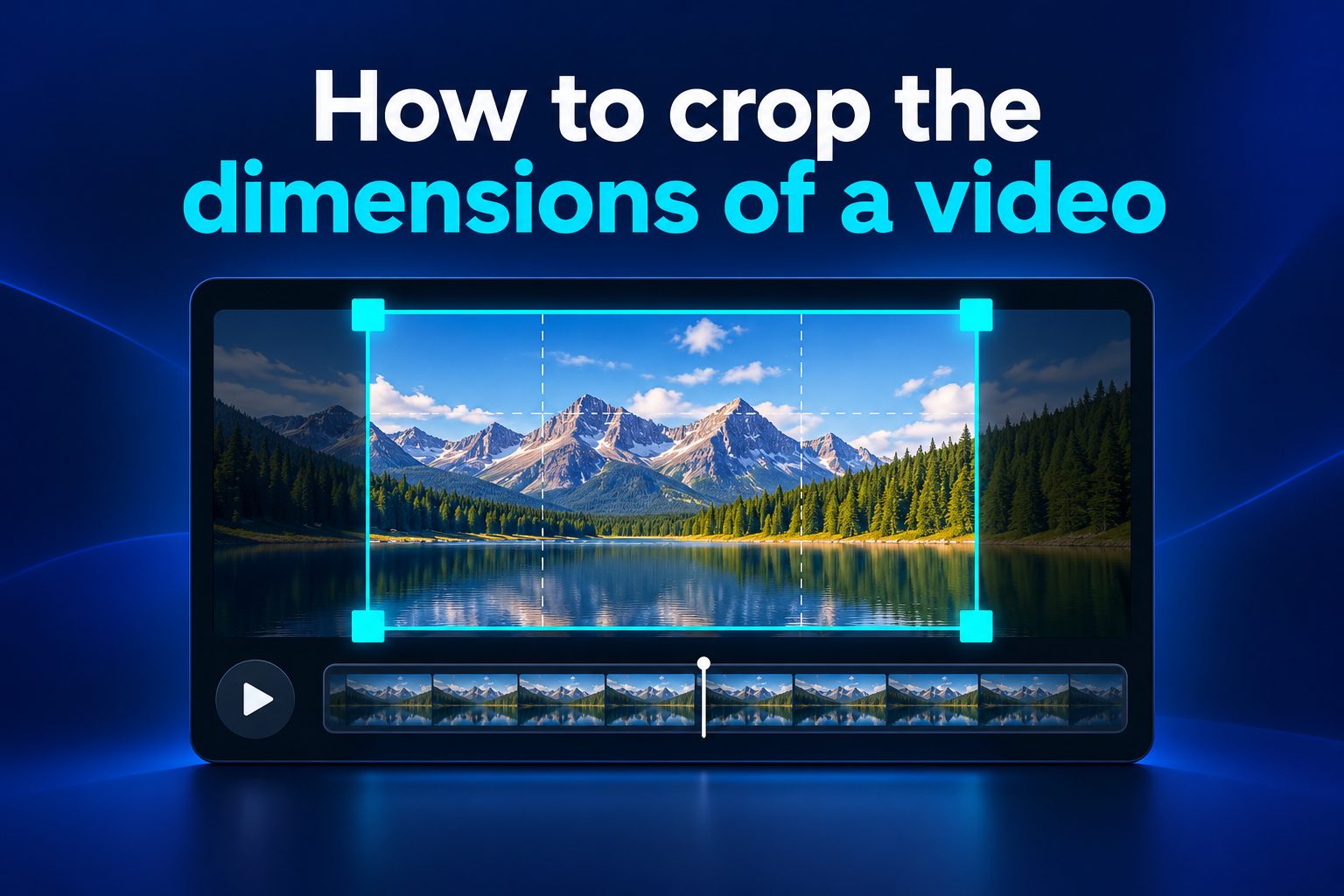
Learning how to crop the dimensions of a video helps you make footage fit the screen where people will watch it. Whether you are posting a short clip, editing a tutorial, or preparing a presentation, cropping removes unwanted edges and improves the composition without needing to reshoot.
Video cropping is different from resizing. Resizing changes the entire frame to new dimensions, while cropping cuts away parts of the existing frame. Used carefully, it can turn a wide recording into a vertical clip, remove distractions, or draw attention to the most important subject.
The best result starts with a clear goal: choose the destination, protect important details, and preview the frame before exporting. This guide covers the practical decisions that make cropped videos look intentional rather than cramped.
Cropping changes what the viewer can see, so it is both a technical and creative editing decision. A good crop preserves the story while removing visual elements that do not support it.
Most platforms favor specific aspect ratios. Vertical video suits phone-first viewing, square video works well in compact feeds, and wide video remains useful for presentations, television, and desktop viewing.
Before moving crop handles, identify the focal point. It may be a face, product, screen recording, demonstration, or action happening in one area of the frame.
Leave enough space around people and moving subjects. A tight crop can look polished in a still frame but fail when the speaker turns, gestures, or walks slightly off center.
Always preview the complete clip, not only the opening frame. The right dimensions are the ones that keep the important content visible from beginning to end.
How Do You Crop Video Dimensions Correctly?
Choose The Final Aspect Ratio
Start by selecting an aspect ratio based on where the video will appear. A vertical 9:16 frame is common for full-screen mobile viewing, a 1:1 frame is compact and balanced, and a 16:9 frame is familiar for widescreen playback. Choosing this first prevents unnecessary rework later.
Duplicate The Original Clip
Keep the original recording untouched and create a working copy for each version. Cropping is usually reversible inside an editor, but a separate project or duplicate clip makes it easier to compare formats and return to the full frame if a later change needs more visual space.
Place The Subject In The Safe Area
Move the crop box so faces, products, captions, and key actions remain comfortably inside the visible area. Avoid placing vital details too close to an edge, because playback controls, captions, or interface elements may cover that part of the video on some devices.
Use Motion To Test The Crop
Scrub through the timeline and watch for movement before committing to the crop. A speaker may lean sideways, a product may be lifted higher, or an object may enter from the edge. Adjust the crop wider or add keyframes when the focal point moves during the clip.
Check Text And Screen Recordings
Screen recordings need extra care because menus, labels, and small instructions can become unreadable after cropping. Keep the area being explained large enough to understand, and consider a closer crop only when it removes unused borders without hiding essential controls or information.
Preview On The Intended Device
A crop that looks fine on a large editing monitor can feel too tight on a phone. Preview the exported frame in a size close to the real viewing experience. This helps you spot cut-off heads, tiny text, awkward empty space, and details that no longer stand out.
What Should You Check Before Cropping?
1. Choose the platform and aspect ratio before editing so the frame has a clear purpose.
2. Identify the main subject and keep it visible through the full duration of the video.
3. Check whether subtitles, logos, or interface controls will occupy space near the edges.
4. Review movement, especially when people walk, turn, gesture, or hold objects up.
5. Confirm that the crop does not make important text, faces, or product details too small.
Benefits Of Cropping Video Dimensions
- Better Platform Fit: A properly cropped frame fills the intended viewing area and avoids distracting empty borders.
- Stronger Focus: Removing unused background directs attention toward the person, product, or action that matters.
- Cleaner Composition: Cropping can improve balance by removing clutter, uneven edges, or off-center distractions.
- More Reusable Footage: One wide recording can become several versions for vertical, square, and widescreen placements.
- Improved Mobile Viewing: A vertical crop can make the subject larger and easier to see on a phone screen.
- Simple Privacy Control: Cropping can remove sensitive details, bystanders, or private information near the edge of a frame.
Common Video Cropping Mistakes To Avoid
Cropping Before Choosing A Destination
Cropping without knowing the final destination often creates a format that does not suit any platform well. Decide whether the video is for vertical, square, or widescreen viewing first. Then shape the frame around that requirement instead of making a second compromise crop later.
Cutting Off Heads Or Hands
A crop that cuts through a person’s forehead, chin, hands, or elbows can feel accidental and uncomfortable. Give people reasonable breathing room, especially during interviews and demonstrations. Watch the whole sequence because gestures may extend beyond the space that looked safe in the first frame.
Ignoring Captions And Graphics
Captions, lower-third labels, and on-screen graphics need their own safe space. If you crop after adding them, they may sit too close to an edge or disappear entirely. Plan the crop first whenever possible, then position text where it stays readable and unobstructed.
Zooming In Too Far
Cropping creates the appearance of zooming, but an aggressive crop can reduce useful detail and make footage appear soft or grainy. Leave enough of the original frame to maintain quality. If the subject is still too small, a different shot or higher-resolution source may be necessary.
Forgetting About Moving Subjects
Static framing can fail when the subject moves across the scene. A person may leave the crop, or an important object may be revealed only near the edge. Use motion tracking or changing crop positions when available, and review every major movement before export.
Exporting Without A Final Review
It is easy to judge the crop inside an editor and miss problems that appear after export. Watch the finished file from beginning to end, including any transitions. Check orientation, black bars, audio sync, caption placement, and whether the chosen dimensions match the intended upload setting.
Cropping video dimensions is a practical way to improve framing, fit different screens, and reuse existing footage. The strongest crops keep the viewer focused while protecting the details that carry the message.
Choose the destination first, select the right aspect ratio, and review the full timeline for movement. Those simple habits prevent most awkward crops and help every version feel purpose-made.
When in doubt, keep a little more space around the subject and test the result on the device your audience is likely to use. A careful preview is often the difference between a usable crop and a polished one.
FAQs About Cropping Video Dimensions
Can I crop a video without lowering its quality?
Cropping removes part of the frame, but it does not automatically lower quality. Quality can suffer if you crop very tightly and then enlarge the remaining area too much. Starting with a high-resolution source gives you more flexibility and helps the final export remain clear.
What is the difference between cropping and resizing a video?
Cropping removes visible areas from the edges of a video, changing what viewers can see. Resizing changes the pixel dimensions of the entire frame. Editors often use both: crop to improve composition or aspect ratio, then resize the finished frame for the desired output.
Which aspect ratio should I use for vertical video?
A 9:16 aspect ratio is the standard choice for full-screen vertical video on phones. It is tall and narrow, making it suitable for clips designed for mobile-first viewing. Keep the main subject centered or intentionally positioned where interface elements will not cover it.
Can I crop a horizontal video into a vertical video?
Yes, but you must choose which part of the wide frame deserves attention. Center the main person or action, and check for movement across the clip. If the subject travels horizontally, use animated cropping, separate shots, or a layout that preserves more of the original frame.
Should I crop before adding captions?
In most cases, crop first and add captions afterward. This gives you a stable frame and lets you place text safely within the visible area. If captions already exist, review their position carefully after cropping so they do not touch an edge or block important content.
How do I know if my crop is too tight?
A crop is probably too tight if faces, hands, products, or text frequently approach the edges, or if the viewer has little visual context for what is happening. Preview the full clip on a phone and a larger screen, then widen the frame when essential movement feels restricted.