
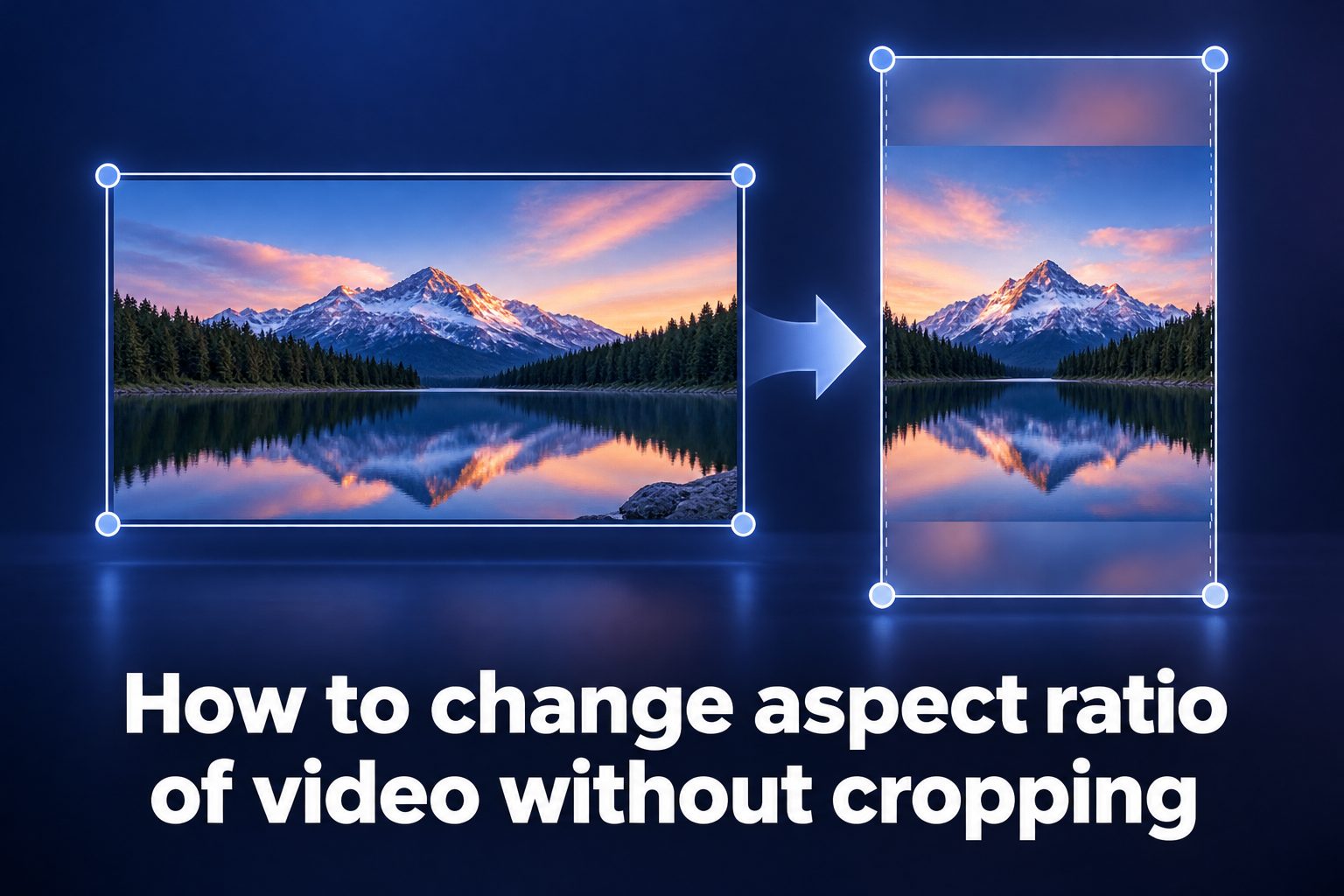
Learning how to change aspect ratio of video without cropping helps you reuse the same footage across widescreen, vertical, square, and other layouts while keeping every important detail visible. Instead of cutting off faces, products, captions, or scenery, you adapt the frame in a way that protects the original composition.
This matters whenever a video made for one screen needs to appear somewhere else. A landscape interview may need a vertical version, while a phone recording may need to fit a presentation or website player. The goal is not simply to fill a new frame; it is to make the video look intentional.
The right method depends on the footage, platform, audience, and message. You may add a background, use a blurred duplicate, place the video inside a designed canvas, or expand selected areas with editing tools. Each option preserves the original image differently.
This guide explains the practical choices, planning steps, common tradeoffs, and quality checks that help you change a video’s aspect ratio without losing the content viewers need to see.
Aspect ratio is the relationship between a video’s width and height. Common examples include 16:9 for standard widescreen video, 9:16 for full-screen vertical viewing, 1:1 for square posts, and 4:5 for taller feed placements.
Cropping changes the visible image by removing material from the edges. Resizing alone can also create distortion if the image is stretched unevenly. A no-crop workflow keeps the complete original frame intact.
When a source video does not match its destination frame, unused space appears around it. That space is not automatically a flaw. It can become a clean design area, a blurred extension of the footage, or a place for captions and branding.
Preserving the full frame is especially valuable for tutorials, demonstrations, interviews, screen recordings, group scenes, and product videos. In these formats, details near the edges often carry part of the message.
A successful conversion balances visibility and presentation. Viewers should be able to notice the subject quickly, read essential text comfortably, and feel that the format supports the story instead of distracting from it.
How Can You Change Video Aspect Ratio Without Cropping?
Start With The Destination Format
Choose the target aspect ratio before making edits. A video intended for a vertical phone screen needs a different canvas than one intended for a television or presentation. Knowing the final placement lets you build around the original frame instead of trying to rescue a rushed export later.
Keep The Original Clip Proportional
Place the source clip on the new canvas and scale it proportionally. This keeps people, objects, and text looking natural. Avoid dragging only the side or top handles in a way that stretches the image, because distorted faces and circles immediately signal poor editing.
Use Letterboxing Or Pillarboxing
Black or solid-color space above and below, or beside, the video is the simplest no-crop solution. It is often appropriate for formal presentations, archival footage, training videos, and clean editorial work where accuracy matters more than filling every pixel.
Create A Blurred Background
A popular social-video method is to duplicate the clip, enlarge the lower copy to fill the canvas, and blur it. Keep the original video sharp on top. This preserves the entire frame while creating a fuller appearance that feels connected to the footage.
Build A Branded Canvas
Use the open canvas area for a subtle brand color, title, speaker name, caption area, or supporting graphic. Keep the design restrained so it does not compete with the video. A consistent canvas can make reused footage feel native to each platform.
Adjust Captions Separately
Captions should be repositioned for the new frame rather than left in a cramped or unsafe area. Check that they do not overlap faces, controls, or the lower edge of a mobile screen. Separate caption layers give you much more flexibility than burned-in text.
Preview On The Intended Screen
A desktop preview does not always reveal how a vertical or square version will feel on a phone. Watch the complete video at a realistic size and check the opening seconds, on-screen text, speaker visibility, and background treatment before final export.
Why Preserve The Full Video Frame?
1. Complete visual context keeps demonstrations, charts, group scenes, and background clues visible to the audience.
2. No-crop editing prevents accidental removal of subtitles, logos, product details, and names placed near an edge.
3. The original composition remains intact, which respects the work of the camera operator and avoids awkwardly cutting off subjects.
4. One source file can be repurposed for several placements without reshooting the same content in every orientation.
5. A consistent conversion process saves editing time for teams that publish frequent videos across multiple channels.
Key Choices For A No-Crop Video Resize
- Source Resolution: Begin with the highest-quality original available. Enlarging a small video to fill a larger canvas can make softness, compression, and noise more obvious.
- Subject Placement: Check where the speaker, product, or key action sits in the original frame. Centered footage usually adapts more easily than footage with important details at both edges.
- Background Style: Select a background that supports the content. A simple color feels professional, while a blurred duplicate often feels more immersive for short-form video.
- Text Readability: Make captions and labels large enough for mobile viewing. Keep strong contrast between text and both the video and any added canvas area.
- Platform Behavior: Review how the destination displays previews, controls, and safe areas. A frame that looks good in an editor can lose impact if its key text sits too close to an interface overlay.
- Audio Quality: Changing aspect ratio does not require changing audio, but every export deserves an audio check. Clear speech and balanced levels remain essential when viewers are focused on a smaller central image.
Best Practices For Video Aspect Ratio Changes
Plan Multiple Formats During Filming
If you know a video will be reused, leave comfortable space around the main subject during filming. This gives you room for captions, backgrounds, and alternate layouts. It also reduces the chance that an important visual element will feel too small after conversion.
Choose One Clear Focal Point
No-crop formats work best when viewers can identify the main subject quickly. If a scene contains many competing elements, use a calmer background and avoid extra graphics. The new canvas should guide attention toward the original footage, not scatter it.
Keep Background Motion Subtle
A blurred background can become distracting when its motion is strong or its colors flash rapidly. Reduce brightness, contrast, or opacity when needed. The sharp foreground clip should remain the visual priority throughout the entire video.
Use Consistent Templates Carefully
Templates speed up production, but they should not force every clip into identical treatment. Keep your colors, text placement, and spacing consistent while allowing room for different subject positions, caption lengths, and video orientations.
Avoid Excessive Enlargement
Do not enlarge the source simply to eliminate every empty area. Scaling too far can reduce sharpness and make a person appear overly close. A little designed space is often more polished than a full frame with weak image quality.
Check Accessibility Before Export
Make sure captions are readable, speaker labels are clear, and visual instructions are not dependent on edge details that may appear small. Good contrast and sensible text placement help viewers on small screens and viewers who watch without sound.
Export A Test Version First
Before rendering a long final file, export a short sample containing movement, captions, and the most detailed scene. Review it on the intended device. This simple check can reveal blur, compression, awkward spacing, or text problems early.
Changing a video’s aspect ratio without cropping is mainly about preserving the complete story while making the presentation fit a new screen. Proportional scaling, designed canvas space, blurred backgrounds, and careful text placement all provide useful solutions.
The best approach is the one that keeps essential details visible and feels natural for the viewer. A plain background may suit a training video, while a blurred extension may work better for a short social clip.
Plan the destination format early, protect the focal point, and review the finished video on the device where people will watch it. These habits make repurposed footage look deliberate rather than resized at the last minute.
FAQs About Changing Video Aspect Ratio Without Cropping
Can I Change A Video Aspect Ratio Without Losing Quality?
You can preserve visual content without cropping, but quality depends on the source resolution and how much you enlarge it. Keeping the original clip at a reasonable size and using a background or canvas around it usually produces better results than stretching or aggressively scaling the footage.
What Is The Best Way To Make A Horizontal Video Vertical?
For most horizontal videos, place the full widescreen clip in a vertical canvas and use a blurred duplicate or a simple designed background behind it. This keeps the entire original frame visible while giving the final video a fuller vertical presentation.
Will Black Bars Make My Video Look Unprofessional?
Not necessarily. Black bars can look clean and purposeful when the content is formal, educational, cinematic, or archival. They become less effective only when they make the important video area too small or when the destination format strongly favors a more immersive full-screen look.
Should I Stretch A Video To Fit A Different Frame?
Stretching is usually a poor choice because it changes the shape of people, products, logos, and text. Preserve the clip’s proportions instead. If the frame has extra space, fill it with a suitable background, graphic treatment, or intentionally simple color.
Can I Add Captions When The Video Has Empty Space?
Yes. Empty canvas space can be an excellent place for captions, especially when the original footage is busy or contains a speaker near the bottom edge. Keep the text readable, avoid covering key details, and leave enough margin for player controls and screen boundaries.
Which Aspect Ratio Should I Choose For My Video?
Choose the ratio based on where viewers will watch the video and how the platform displays it. Widescreen suits many players and presentations, vertical suits phone-first viewing, and square or tall formats can work well in feeds. Match the format to the viewing context first.